
Select any screenshot to view it at full size. Screenshots show example accounts and may include historic dates or deadlines.
Searching for invoices and credits
There are three ways to search for invoices and credits on Batch. The method you choose depends on the type of information you’re looking to view.
Summary Screens
Clicking on a value within a summary screen will take you to a corresponding list of invoices and credits.
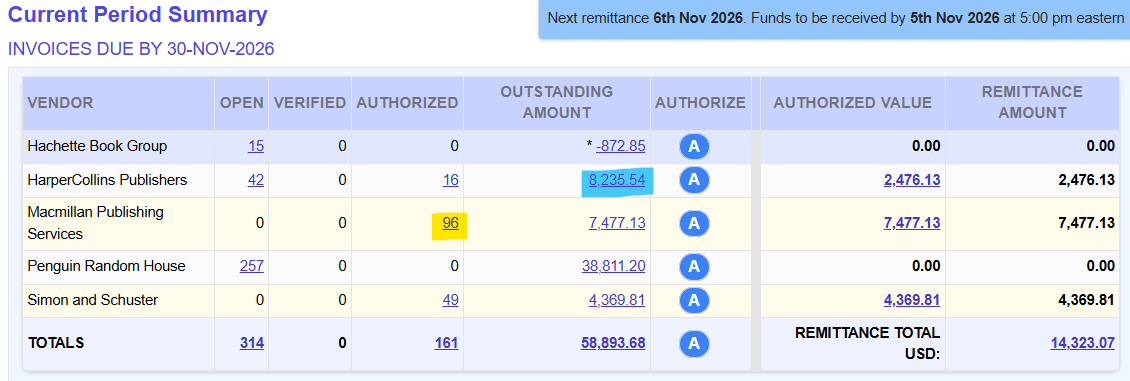
The screenshot above shows the Current Period Summary and reflects outstanding invoices due by the end of the month, plus any available credits.
- Clicking on the HarperCollins Outstanding amount (blue highlight) will bring up a list of Outstanding HarperCollins invoices and credits due before the end of the month.
- Clicking on the Macmillan Authorized value (yellow highlight) will bring up a list of Authorized Macmillan invoices and credits due before the end of the month.
If a user was looking for more recent invoices, they would go to the Future Summary via the Period Summaries dropdown and drill down through that summary table.
Definition! Outstanding include Open, Verified, and Authorized invoices
Recommended for:
- Viewing outstanding invoices and credits only
- Viewing what invoices and credits are due to the publishers this month [Current Period]
QuickSearch
Stores can search for specific invoices instead of a range of invoices by using the QuickSearch bar on the right-hand side of the yellow bar. Enter an invoice number or an ISBN into the bar and press enter to bring up a single invoice (or a list of invoices that include a specific ISBN).

Recommended for:
- Quickly bringing up a specific invoice or credit
- Searching when you have the invoice number or ISBN on hand
Advanced Search
Stores can use Advanced Search to bring up a range of invoices and credits based on their own custom parameters. Provides maximum flexibility and customization.
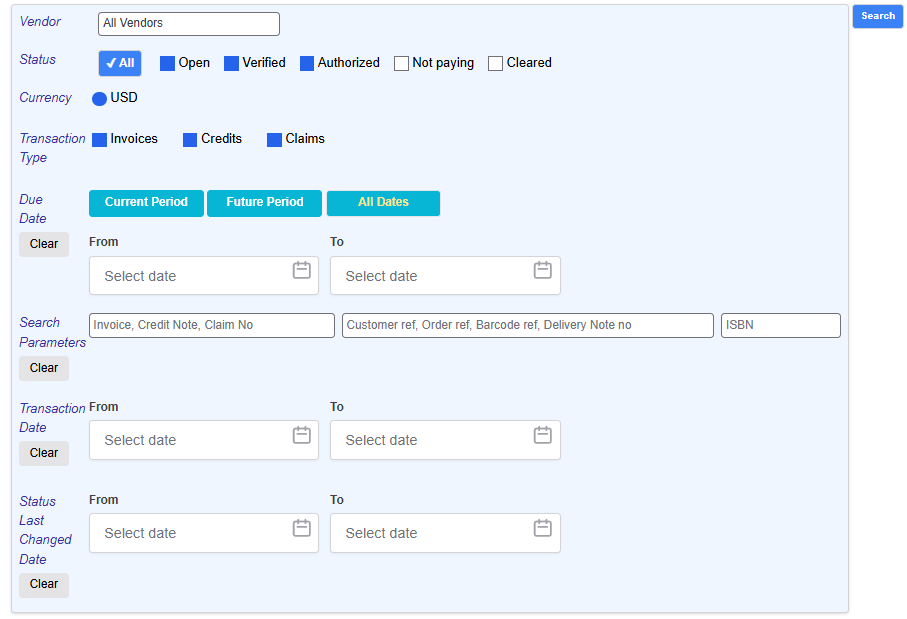
Parameters include:
- Vendor
- Status
- Transaction Type
- Location (for companies with multiple locations)
- Invoice date range
- Due date range
- Payment date range
- Individual parameters like invoice no, order no, ISBN, etc
Recommended for:
- Searching for invoices that have already been paid (Cleared) or marked Not paid in Batch
- Custom date-range or transaction type searches
Viewing Invoices and Credits
No matter which of the three methods you employ to run a search, the results always take you to the same location: the Batch Transaction Screen, which provides summary level-detail such as date, due date, type, status, amount, and invoice and credit number.
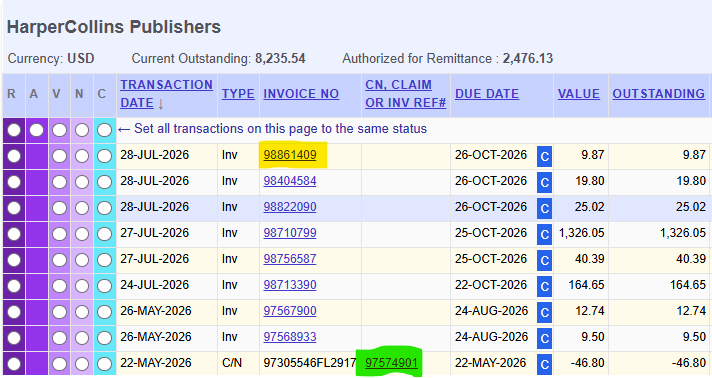
To view the line-item details of an invoice or credit, users click on the invoice number (yellow highlight) or credit number (green highlight)