
Select any screenshot to view it at full size. Screenshots show example accounts and may include historic dates or deadlines.
Use your Batch Payments portal to quickly submit claims for shipment problems, such as damaged or missing books. Batch sends your claim directly to the vendor and keeps a record in your portal, eliminating the need for phone calls or emails.
Claims Process
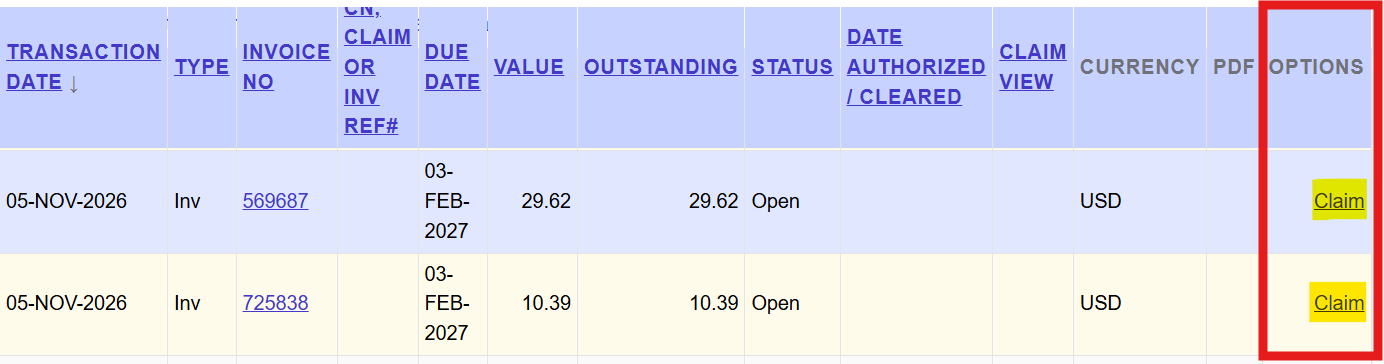
- Find the invoice you want to make the claim against.
- Click on the Claim link in the Options column located on the far-right side of the Transaction screen.
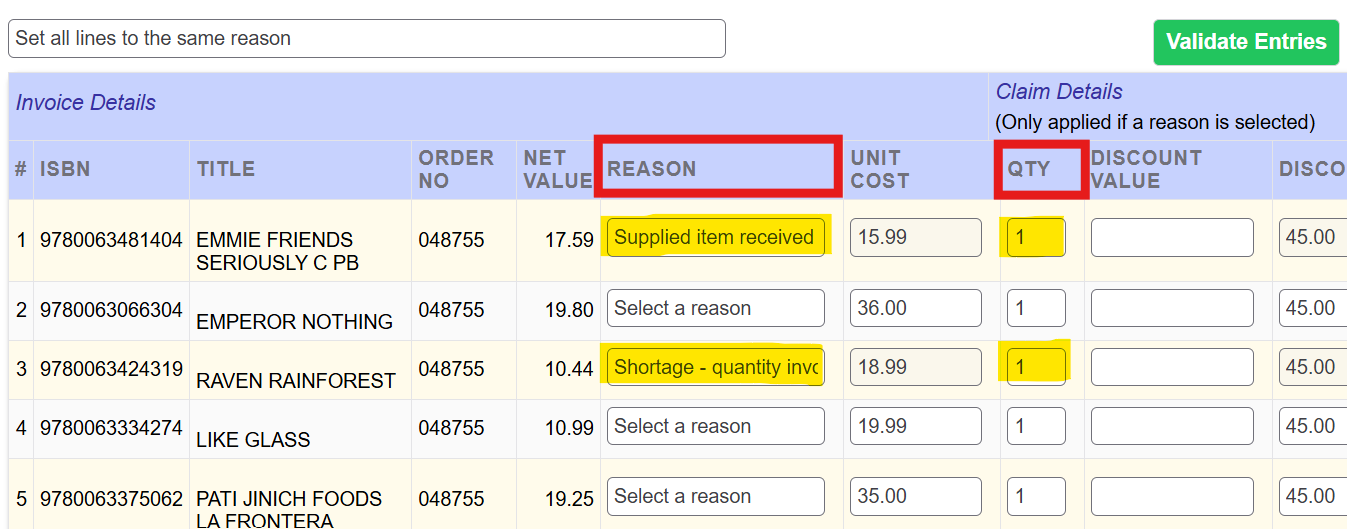
- Enter the reason and quantity for each title.
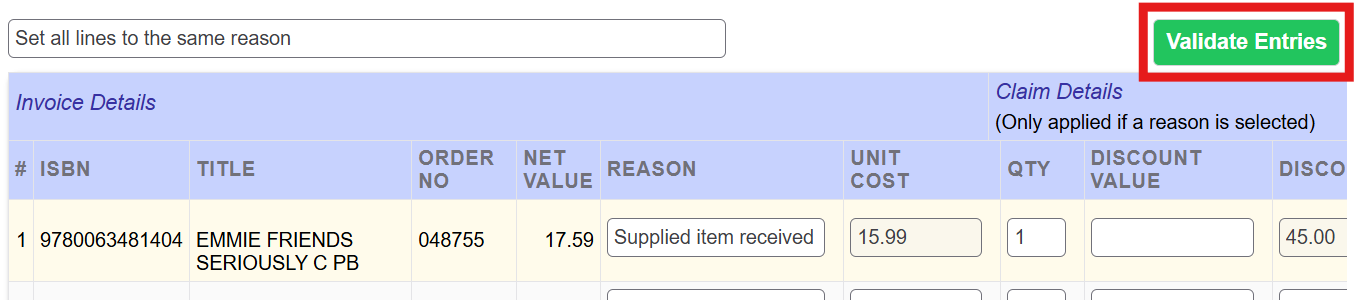
- Click on the green Validate Entries button to review your claim details.
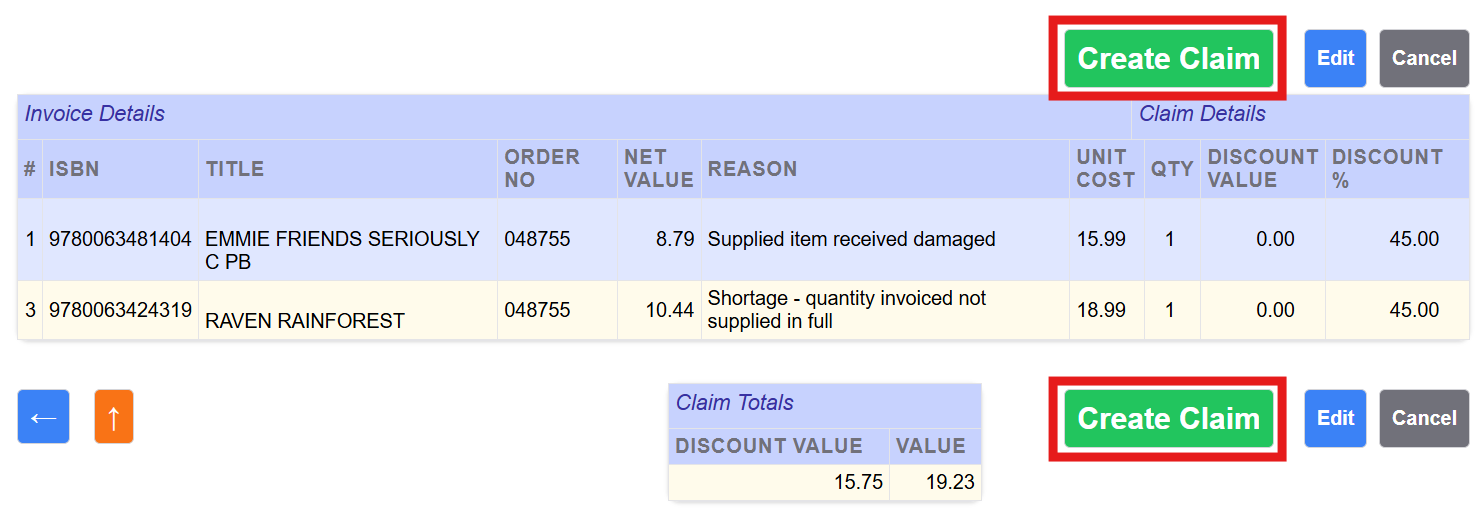
- Submit the claim by clicking on the green Create claim button above or below the claim details.
What happens next?
Two things will happen after you click the Create Claims button:
- Batch emails your claim details to the publisher. The publisher will process the claim and create and transmit a credit to your Batch portal.
- Batch creates a record of your claim in your Batch portal. The type of this transaction will be ‘Claim’ instead of Inv (for invoice) or C/N (for credit note).
Common questions about Claims
Do I have to submit claims through Batch or can I continue to submit claims directly to the publisher?
Stores are not required to submit claims through Batch, though there are numerous benefits by doing so:
- Same simple claims process for all vendors
- Electronic record of claims in one location.
- No need to hold onto paperwork
How long does it take for a claim to be processed and for a credit note to appear on Batch?
Most publishers process claims and transmit credits to Batch within 3 business days. The one exception is Macmillan, who process all claims made through Batch over the previous week en masse every Monday, with credits showing up on Batch on Tuesday.
I want to make a claim, but the invoice doesn’t have a claim link. Why not?
There are two reasons why an invoice might not have a claim link:
- More than 30 days from the invoice date. Users can only make claims through Batch within 30 days of the invoice date to emulate publisher’s policies of needing to make claims within a certain time frame. The claim link will be removed after 30 days. Reach out to your credit rep or publisher customer service if you need to submit a claim against an invoice that is more than 30 days from the invoice date.
- Invoice is authorized. Stores cannot submit claims against authorized invoices. If you need to submit a claim against an authorized invoice, re-open the invoice, submit the claim, and then re-authorize the invoice.
Why does clicking on the claim link for a Penguin Random House invoice take me to their publisher portal instead of the Batch claim screen?
Penguin Random House does not allow stores to submit claims through Batch. They are the only publisher with this constraint.
Can I have a book re-shipped?
There is no re-ship option. Publishers create credits for all claims submitted through Batch, so stores must re-order the book if they want a replacement copy.
Will the publisher notify me through Batch if there is a problem with the claim?
Communication will not be handled through Batch. Publishers will reach out directly to stores if there is an issue with your submitted claim.
Can I submit multiple claims against the same invoice?
Yes. If you find you need to submit an additional claim, you can follow the usual claims process to do so.
Why don’t the Claim transactions have any status update buttons?
Although claims show up on your list of transactions along with your invoices and credits, stores do not need to authorize, verify, or otherwise change the status of a claim’s transaction. Technically, claims are considered part of the invoice the claim was made against and will be cleared at the same time the invoice is cleared?
Will the Claim transaction be updated when the publisher finishes processing the claim and issues a credit?
There is nothing on the claim transaction that will indicate it has been processed and that the publisher has issued credit.
There are various ways to track your claims to ensure you’ve received credit that are covered in our Tracking Claims guide.
How do I edit or delete a claim if I made an error when creating the claim?
Once created, claims can’t be edited or deleted. If you’ve made an error, please email support@batchforbooks.com with your store name, contact name and email, claim number, and description of the error.