
Select any screenshot to view it at full size. Screenshots show example accounts and may include historic dates or deadlines.
Stores can track the claims they’ve made through their Batch portal to ensure the publisher has processed the claim and transmitted a credit note to their Batch portal.
Claim Processing Timing
Most publishers process claims and transmit credits to Batch within 3 business days. The one exception is Macmillan, who processes all claims made through Batch over the previous week en masse every Monday, with credits showing up on Batch on Tuesday.
Claim Reconciliation Methods
When sending credits to Batch, publishers use different methods, different labels and different fields from one another, which can affect how stores can reconcile claims against credits issued by the publishers. Below are various methods stores can employ:
QuickSearch by ISBN
Stores can use the QuickSearch box on Batch to search by ISBN. Results will include all invoices, credits, and claims that include the ISBN.
This method is effective for reconciling individual claims for all publishers except HarperCollins.

Results
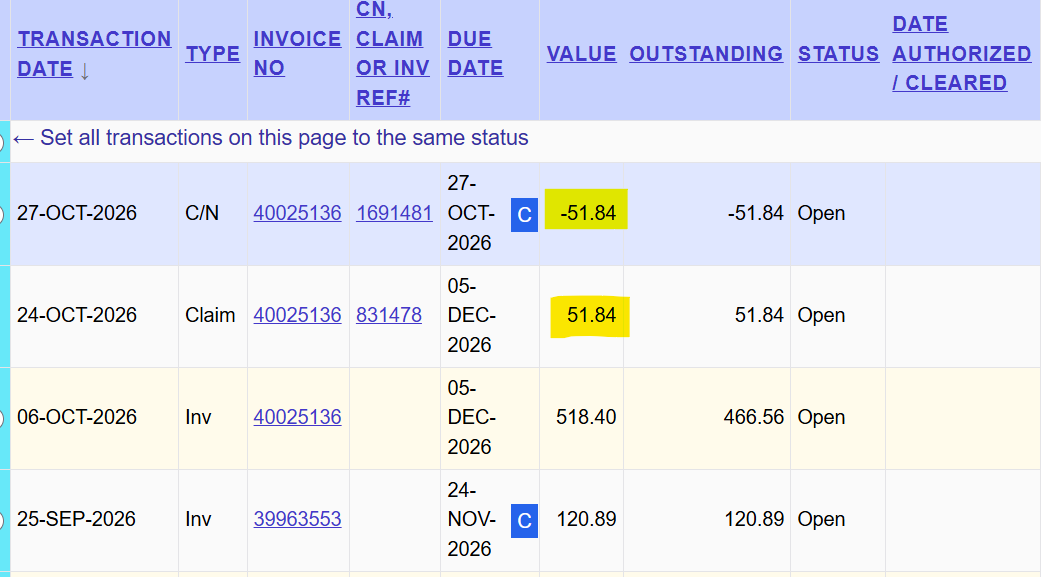
The search results will be sorted by reverse transaction date (newest oldest). Your invoice claim and credit should be near the top and the credit should be the negative amount of the claim amount.
Exceptions & Drawbacks
- HarperCollins. Searching by ISBN can’t be used for HarperCollins due to how they process claims submitted through Batch.
- One-at-a-time. Searching by ISBN only works effectively for reconciling one claim at a time, which could be time-consuming.
QuickSearch by Invoice #
Stores can use the QuickSearch box on Batch to search by invoice. Results will include all invoices, credits, and claims which include the invoice number as a data field.
Results
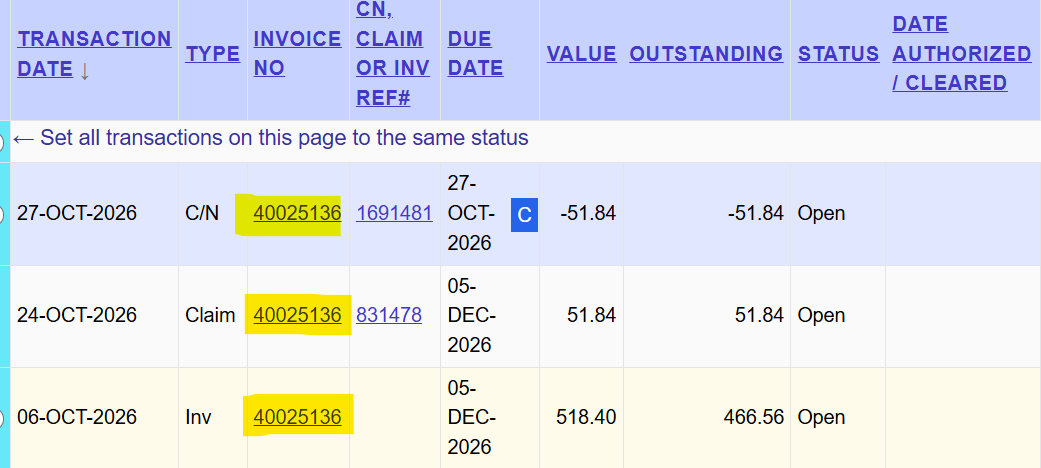
The search results will be sorted by reverse transaction date (newest oldest). Your invoice, claim, and credit will be displayed on the results screen
Exceptions & Drawbacks
- Invoice # not with credit. This method can be inconsistent because not all publishers, including HarperCollins and Hachette, include the original invoice in their data feeds to Batch.
- One-at-a-time. Searching by invoice only works effectively for reconciling one claim at a time, which could be time-consuming.
HarperCollins – Advanced Search
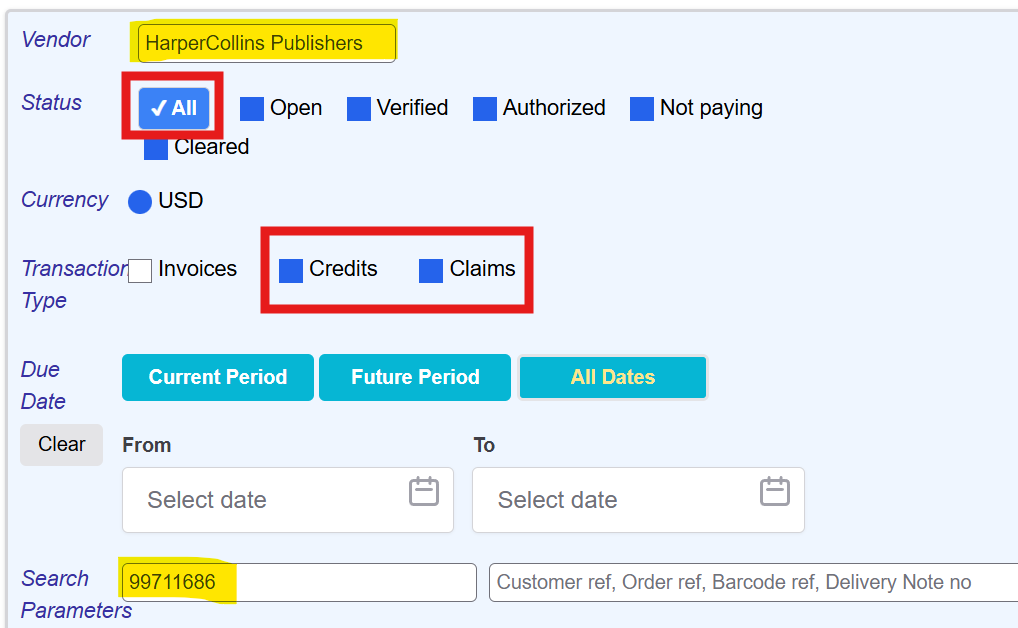
HarperCollins processes their claims in a unique way and requires a unique, but simple, search method. Stores will use Advanced Search for this method.
Go to Advanced Search and set the following parameters:
- Vendor: HarperCollins Publishers
- Status: All
- Type: Credits Claims
- Search Parameter: Invoice number in first field
Results
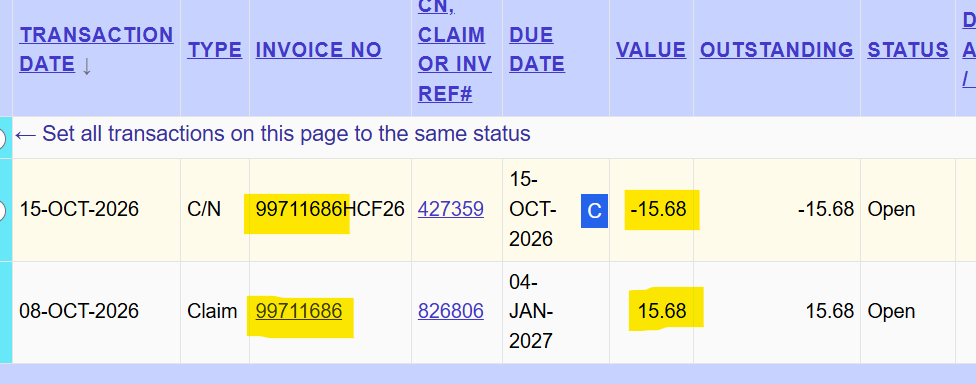
The results will show your claim and the credit for that claim.
Why does searching by invoice number work in Advanced Search but not QuickSearch for HarperCollins?
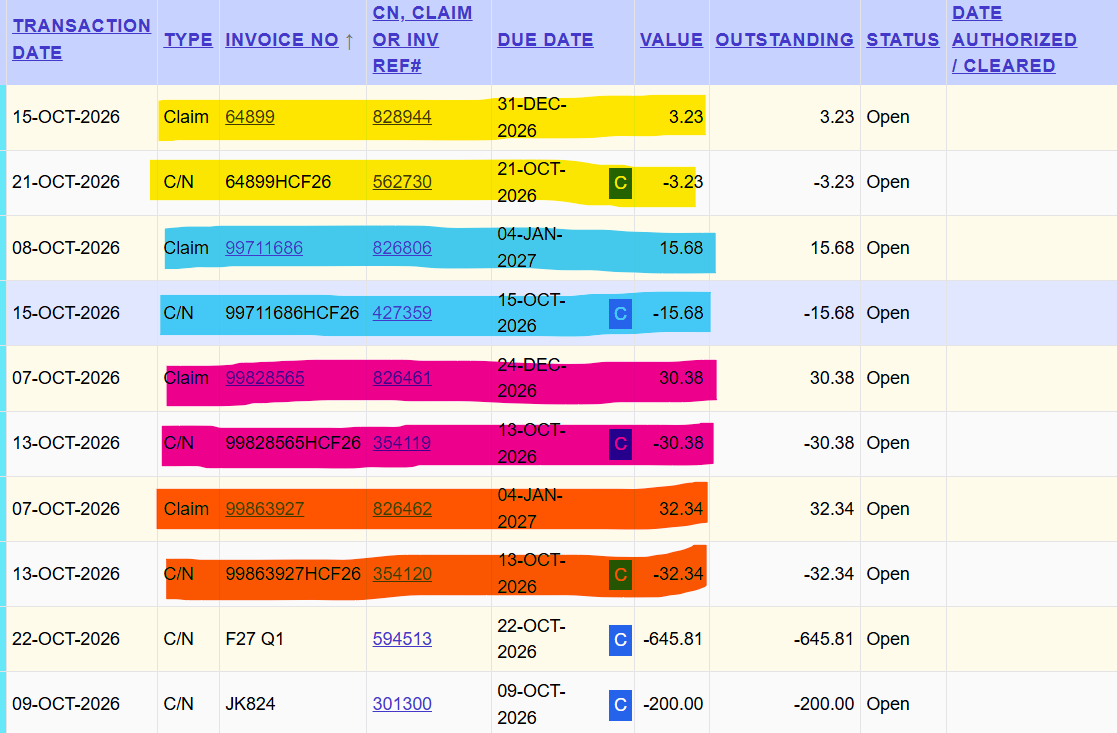
When HarperCollins transmits credits to Batch, they use a reference number that includes the invoice number, but is not an exact match for the invoice number [see highlighted section of Invoice No column in the above image].
QuickSearch on Batch is limited to looking for exact matches, while Advanced Search is more flexible.
Multiple claim reconciliation – Advanced Search by Date Range
The methods outlined above are useful for reconciling individual claims. Reconciling claims one-by-one can be time consuming, especially if you are submitting large numbers of claims. Stores can use Advanced Search to bring up all claims and credits over a specific date range in order to reconcile multiple claims at once.
Go to Advanced Search and set the following parameters:
- Vendor: All or a specific vendor [recommend doing one vendor at a time]
- Status: All
- Type: Credits Claims
- Transaction Date Range
- From: set minimum date in range
- To: set maximum date in range or leave blank [recommend leaving blank]
Results
The results will include all credits and claims over a specific date range. Stores can reconcile claims from this range against all credits issued by your vendor over the same time frame by matching the amount of the claim against the credit amounts.
Our recommended best practice is to sort by the Invoice No field on the results screen, which will put claims and their corresponding credits next to each other for most of the publishers.
Exceptions & Drawbacks
- All credits on results screen. The primary drawback to this method is that the credits on the results screen include ALL credits, not just credits for claims, which can make credit verification a bit more difficult.
Credit not on Batch
If you don’t see a credit for a claim submitted through Batch and it’s been two weeks since you submitted the claim, please email support@batchforbooks.com with your store name and the claim number.